Slicer Tips and Tricks
- Use seam painting to ensure seams will be placed on the outside of whistle models instead of inside where they may affect airflow.
- Increase Acceleration speeds to reduce overall print time. Have doubled the following acceleration speeds on a P1S. Normal Printing (20000 mmm/s)/Travel (20000mm/s)/Outer wall (10000 mm/s)/Top surface (4000 mm/s)
- Increase “Other layers” Speed by 133% or 166% to reduce overall print time, including Outer Wall, Inner Wall, Sparse Infill, Internal solid infill, Top surface, Gap infill
- Alternatively, give Bambu's Sport Mode or Ludicrous Mode a try. This can be activated after the print has started in Bambu Handy, on the Device tab in Bambu Studio, or automatically set in your slicer by Adjusting Print Speed at a Layer Height
- Increase Layer Height. For .4mm nozzles, you can increase the layer height to .24mm or .28mm. If you do increase the layer height, it's recommended to do a layer height adjustment at bridge layers to .20mm with 100% infill/wall overlap to increase the strength of the bridge. Video tutorial in Bambu Studio:
Bridging
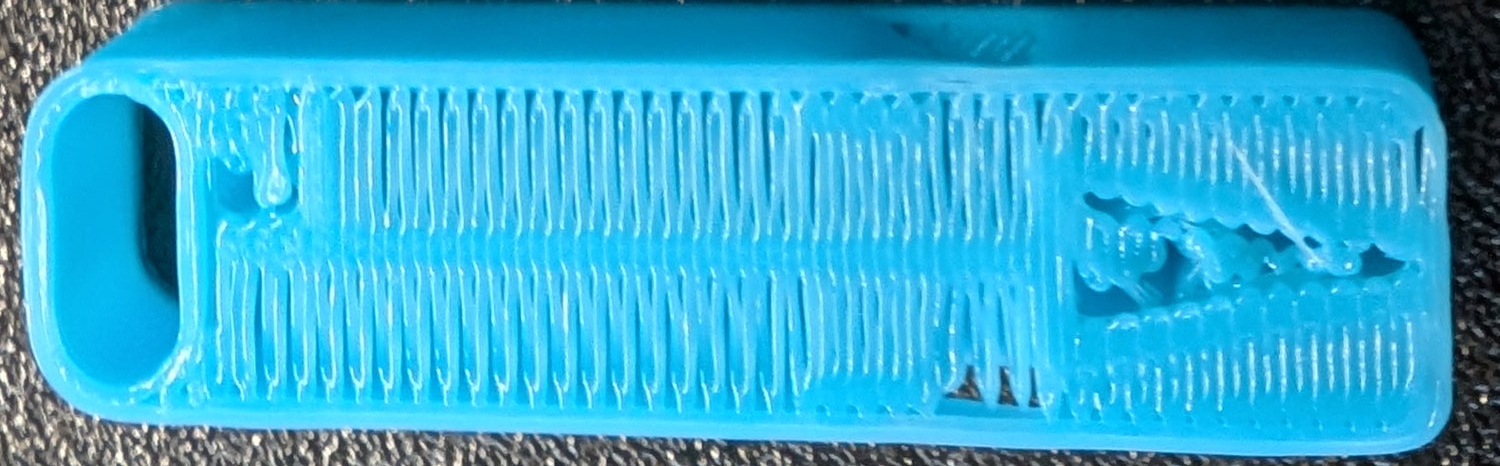
For many whistle designs, a clean and airtight bridge layer can improve whistle reliability.
Several settings can affect bridge quality. Here is an example of a whistle bridge, printed in PLA, with default settings.
Notice both the small gaps between bridge lines, the triangular gaps where the bridge connects to the wall lines, and the alternating bridge lines that appear to slope up and down.
Bridge Direction
Bridge direction should ideally be configured so that the bridge is in the shortest direction. In PrusaSlicer, Bambu Studio and Orca Slicer, the default bridge direction of “0” causes the slicer to choose the direction automatically, and this may or may not be right (or the most important part may not be prioritized). Update this to 90 or 180 as necessary so that your bridges are running the short way. This setting is called External Bridge Infill Direction in Bambu Studio and Orca Slicer, and Bridging Angle in Prusa Slicer.
Infill Overlap
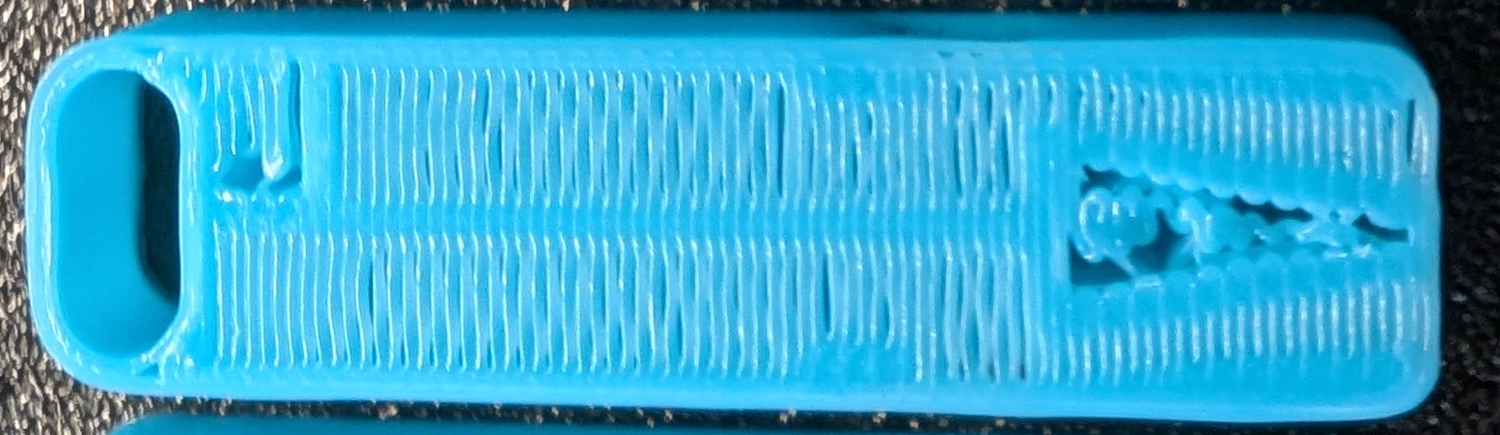
The bridge can be forced to better overlap with the wall, especially when printing at higher speeds, by increasing the infill/wall overlap setting. This can be changed to 100% using Overlap > Infill/perimiters overlap in PrusaSlicer, or Infill/wall overlap in Bambu Studio and Orca Slicer.
Note that there are still gaps between the individual bridge lines, but the ends of the bridge lines are well embedded in the outer wall.
This setting will also affect the overlap between walls and solid overlap on other layers as well (which you probably don't want). Use a range modifier (see video above) to limit the overlap setting to just the bridging layer.
Bridge Density and Flow
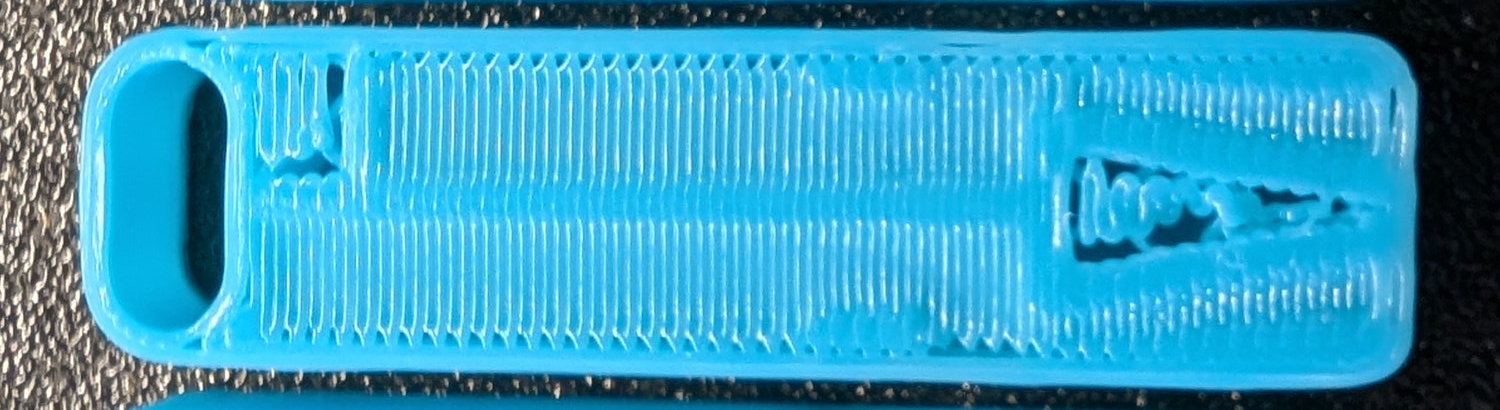
The following comes from Make Wonderful Things' experiments with smooth unsupported bridges. See video here for explanation and results: The BEST settings for bridges? Smooth UNSUPPORTED 3D printed bridges
There are two relevant settings here: Bridge flow rate, and bridge density. The current version of Prusa Slicer does not have an option for bridge density, so the following is relevant mostly for Orca Slicer. As of January of 2026, increasing bridge density above 100% requires the nightly build of Orca Slicer.
The ideal settings for this depend on your nozzle diameter, the layer height of the bridge layer, and the Internal Solid Infill Line Width. You can plug these values into this calculator to get the bridge density and bridge flow options: 3D Printing Bridge Calculator
With these settings alone, the bridge lines are now nicely straight and connected, but there are small triangular gaps at the edges (which the infill overlap settings above correct)
All together now
Here's the bridge layer with all the settings combined. This layer alone is airtight or close to it, reducing internal turbulence.